Connection profiles#
A connection profile stores everything MQTT.fx needs to connect to one broker: the broker address and port, the MQTT version, authentication, TLS, proxy settings, a Last Will & Testament, and session options. You can keep as many named profiles as you like and switch between them from the main window.
Profiles also remember per-broker working data — your recent publish/subscribe topics, saved clipboard messages, and the last payload decoder you used — so each broker keeps its own context.
Opening the profile editor#
There are two ways into the same settings:
- Connection bar → Edit. Select a profile in the connection bar at the top of the main window and click Edit to open its connection options.
- Menu → Edit Connection Profiles. Opens the full editor, where you can also add, delete, and organize profiles.
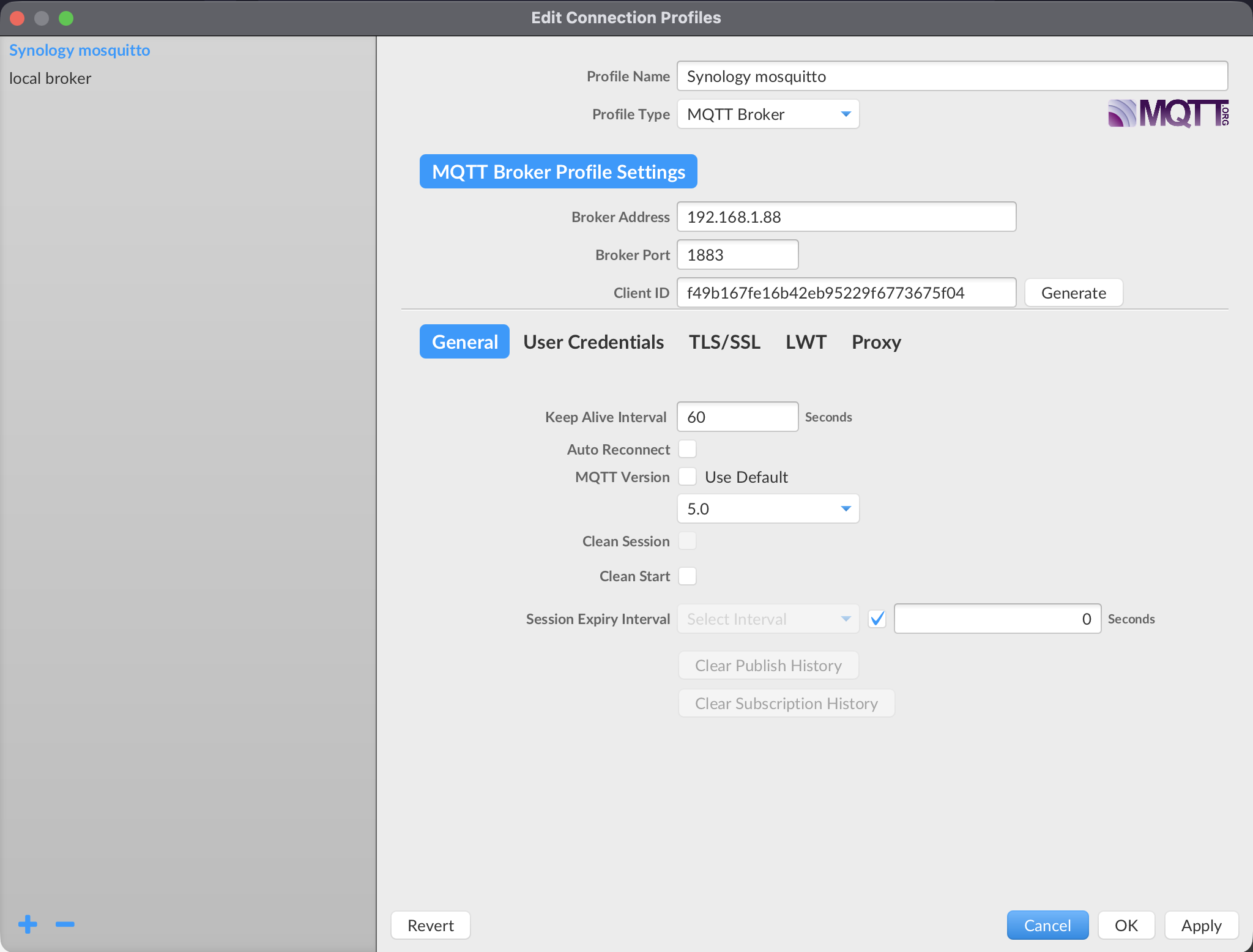
The editor lists your profiles on the left and shows the selected profile's settings on the right.
Creating and managing profiles#
The add and delete buttons are icon buttons (+ and −); the others are labelled with their function.
| Control | What it does |
|---|---|
| + | Add a new profile with default settings |
| − | Delete the selected profile (enabled when a profile is selected) |
| Apply | Save your changes |
| Revert | Discard unsaved changes to the selected profile |
| OK | Save and close the editor |
| Cancel | Close without applying |
A new profile starts with these defaults:
- Profile Name:
default profile - Broker Address:
127.0.0.1 - Broker Port:
1883
Rename the profile in the Profile Name field — the name is how you pick the profile elsewhere in the app, so give each one a clear, unique name.
Broker settings#
| Field | Notes |
|---|---|
| Broker Address | Hostname or IP of the broker |
| Broker Port | Typically 1883 (plain) or 8883 (TLS) |
The connection bar in the main window also lets you select or type the broker address and port directly for quick, ad-hoc connections — see Your first connection.
General and session options#
These options live in the General section of the connection options.
| Field | Default | Notes |
|---|---|---|
| Client ID | MQTT_FX_Client | Must be unique on the broker |
| MQTT Version (Use Default) | On → MQTT 5.0 | See MQTT version |
| Connection Timeout | 30 seconds | How long to wait for the connect to complete |
| Keep Alive Interval | 60 seconds | Max idle time before a PING is sent |
| Auto Reconnect | Off | Automatically reconnect if the connection drops |
| Max Inflight | 10 | Unacknowledged messages allowed in flight; raise it for high-traffic use |
| Clean Session (MQTT 3) | On | Start without remembered session state |
| Clean Start (MQTT 5) | Off | MQTT 5 equivalent; see MQTT 5 features |
| Session Expiry Interval (MQTT 5) | 0 seconds | How long the broker keeps the session after disconnect |
Client ID#
Each MQTT client on a broker needs a unique Client ID. Click Generate to create a unique, UUID-based ID (dashes removed) if you are unsure or hitting "client already connected" style errors.
MQTT version#
By default, Use Default is enabled and MQTT.fx connects using MQTT 5.0. To pin a specific protocol version, clear Use Default and choose one of 3.1, 3.1.1, or 5.0 from the version selector.
The session options available depend on the version:
- MQTT 3.1 / 3.1.1 use Clean Session.
- MQTT 5.0 uses Clean Start together with the Session Expiry Interval. When the selected version is not 5.0, the session-expiry field is disabled.
For what the MQTT 5 session model means in practice, see MQTT 5 features.
Session Expiry Interval can be entered as a number of seconds or picked from a list of presets.
0means the session ends as soon as you disconnect.
Authentication, TLS, and proxy#
The connection options also include these sections, each covered in its own chapter:
- User Credentials (username/password) → Authentication
- TLS/SSL (certificates, keystores) → TLS and security
- Proxy (HTTP/HTTPS proxy) → TLS and security
You can also clear this profile's stored topic history from here: Clear Publish History and Clear Subscription History remove the recent publish/subscribe topics remembered for this profile.
Last Will & Testament#
A Last Will & Testament (LWT) is a message the broker publishes on your behalf if your connection drops unexpectedly. Use it to signal that a client has gone offline.
Enable Use Last Will & Testament, then set:
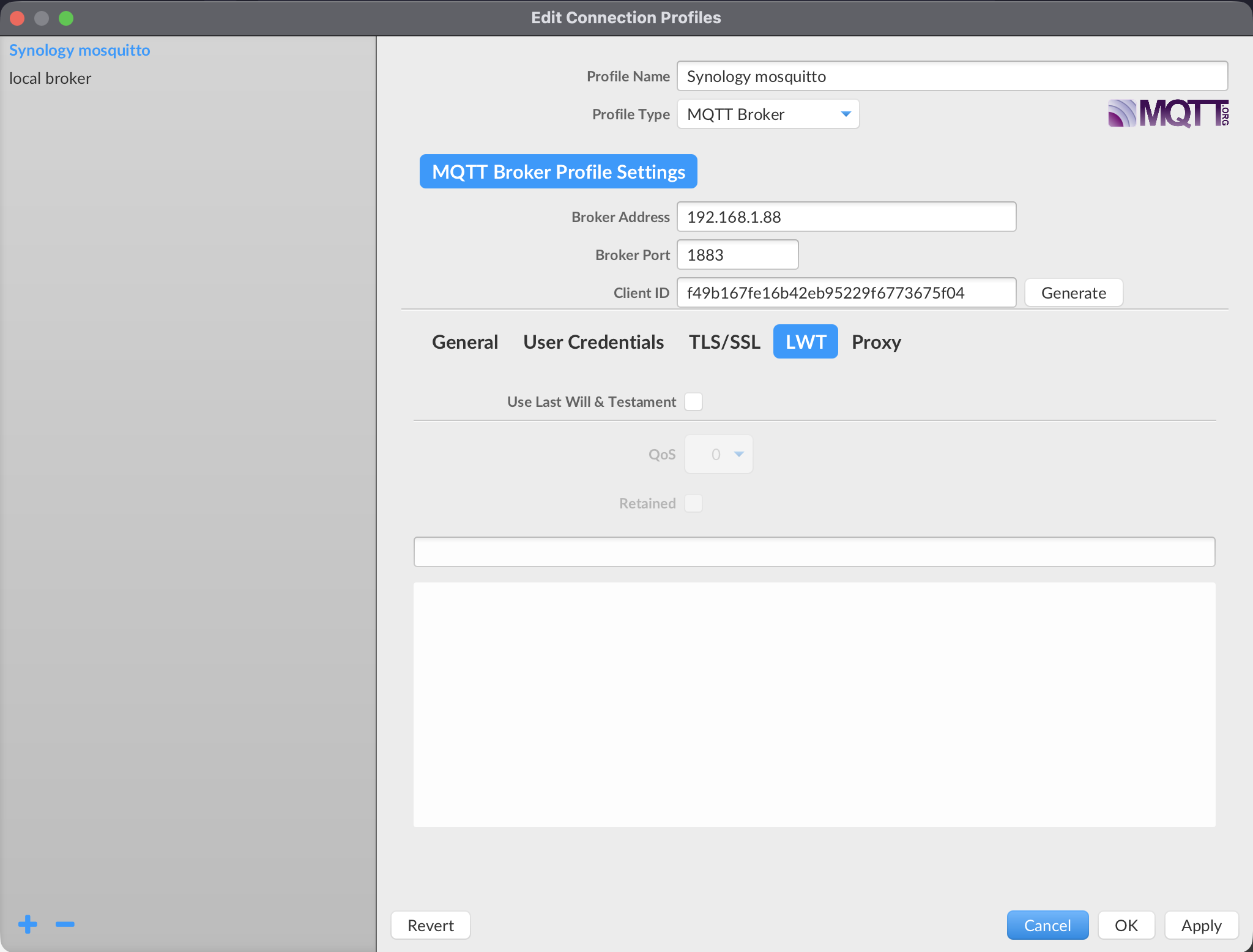
| Field | Notes |
|---|---|
| Last Will | The topic the will message is published to |
| Testament | The will message payload |
| QoS | QoS for the will message |
| Retained | Whether the will message is retained |
Watch out: the LWT is published by the broker only on an unexpected disconnect (for example, a lost network connection), not when you disconnect cleanly with the Disconnect button.
Importing and exporting profiles#
Profiles can be exported to a file and imported into another MQTT.fx installation — useful for backups or sharing a known-good connection with a colleague.
- Export: the Connection Profile Export Assistant writes a selected profile to a file.
- Import: the Import Connection Profiles assistant reads a profile file back in.
Security note: an exported profile may contain credentials and paths to certificate/keystore files. Treat exported profile files as sensitive.
Where profiles are stored#
All profiles and settings are saved in mqttfx-config.xml in the MQTT.fx working directory. See the Appendix for the per-OS path.