Publish and subscribe#
Publishing and subscribing are the core of MQTT.fx. You subscribe to topics to receive messages and publish messages to topics. This chapter covers the Subscribe tab (which also shows received messages) and the Publish tab, including QoS, retained messages, recent-topics history, the message clipboard, and the per-message payload view.
You must be connected to a broker to publish or subscribe; the controls are disabled while disconnected.
Subscribing to topics#
On the Subscribe tab:
- Type or pick a Topic (or topic filter) in the topic field.
- Choose a QoS level — 0, 1, or 2 — with the QoS buttons.
- Click Subscribe, or press Enter in the topic field.
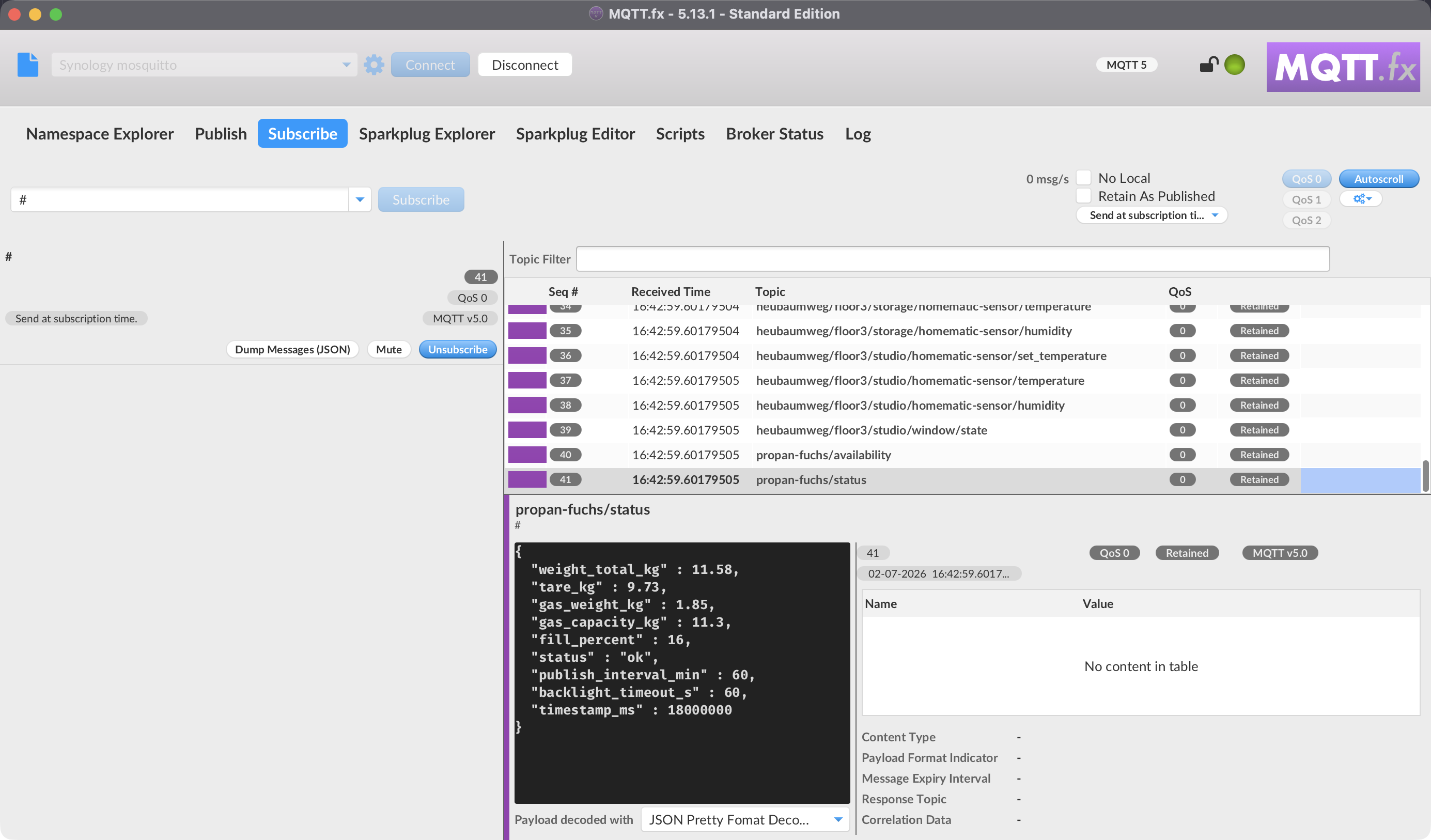
You can subscribe to a single topic (home/livingroom/temperature) or use MQTT wildcards in a filter:
+matches one level —home/+/temperature#matches all remaining levels —home/##on its own subscribes to everything on the broker
Each subscribed topic is assigned a color so its messages are easy to pick out. Once you are subscribed to a topic, the Subscribe button disables for it and Unsubscribe becomes available; click Unsubscribe to stop receiving it.
$SYStopics: subscribing to$SYS/...topics does nothing unless you enable Enable subscriptions to $SYS topics in Settings. For broker statistics, use the Broker status tab instead.
MQTT 5 subscription options#
When the connection uses MQTT 5.0, extra subscription options become available (they are disabled for MQTT 3 connections):
- No Local — do not receive messages you publish yourself on this subscription.
- Retain As Published — keep the original retained flag on forwarded messages.
- Retain Handling — when retained messages are delivered for a new subscription (the default is to send them).
See MQTT 5 features for what each option does and when to use it.
Recent topics and bulk actions#
MQTT.fx remembers the topics you subscribe to per profile, so you can re-subscribe quickly from the topic drop-down. From the subscribe options menu you can:
- Subscribed to all recent topics — re-subscribe to every remembered topic at the selected QoS.
- Unsubscribe from all topics — drop all current subscriptions at once.
- Clear All Topics — remove all remembered subscribe topics from the profile (asks for confirmation).
- Clear Not Subscribed Topics — remove only the remembered topics you are not currently subscribed to.
Receiving messages#
Incoming messages appear in the messages area of the Subscribe tab. MQTT.fx is built to keep the UI responsive under high message rates (it applies backpressure and sheds load when necessary).
Table and list views#
Switch between a Table and a List view. The table shows columns for:
| Column | Meaning |
|---|---|
| Topic | The topic the message arrived on |
| Retained | Whether the message was retained |
| Seq # | Sequence number in the receive order |
| Received Time | When MQTT.fx received it |
| QoS | The message's QoS level |
Following the stream#
- Autoscroll — keep the newest message in view. Autoscroll re-arms on each new subscription so you keep following the latest after subscribing.
- The throughput meter shows messages per second (Incoming vs Processed) so you can see when a stream outpaces the display.
Notifications#
Enable Notifications to get a desktop notification for each received message (the notification shows the topic as its title and the payload as its text). This is useful for low-traffic topics you want to be alerted on; leave it off for busy streams.
Inspecting a message payload#
Select a message to see its payload. The Payload decoded with selector chooses how the payload is rendered; your choice is remembered per profile. See Payloads and formatting for the available decoders and for saving payloads (raw, text, JSON, hex, Base64).
For MQTT 5 messages, the details also show properties such as Content Type, Response Topic, and Correlation Data. A right-click menu lets you Copy Correlation Data, Copy Response Topic, or Subscribe to Response Topic directly — handy when testing request/response patterns. See MQTT 5 features.
Use Copy Payload to copy the selected message's payload to the clipboard.
Clearing received messages#
- Clear Messages Buffer empties the in-memory message buffer immediately.
- Clear Messages History clears the stored received-messages history (asks for confirmation).
You can also have MQTT.fx clear the buffer automatically on disconnect or on unsubscribe — see Settings. The size of the message buffers is configurable there too.
Publishing messages#
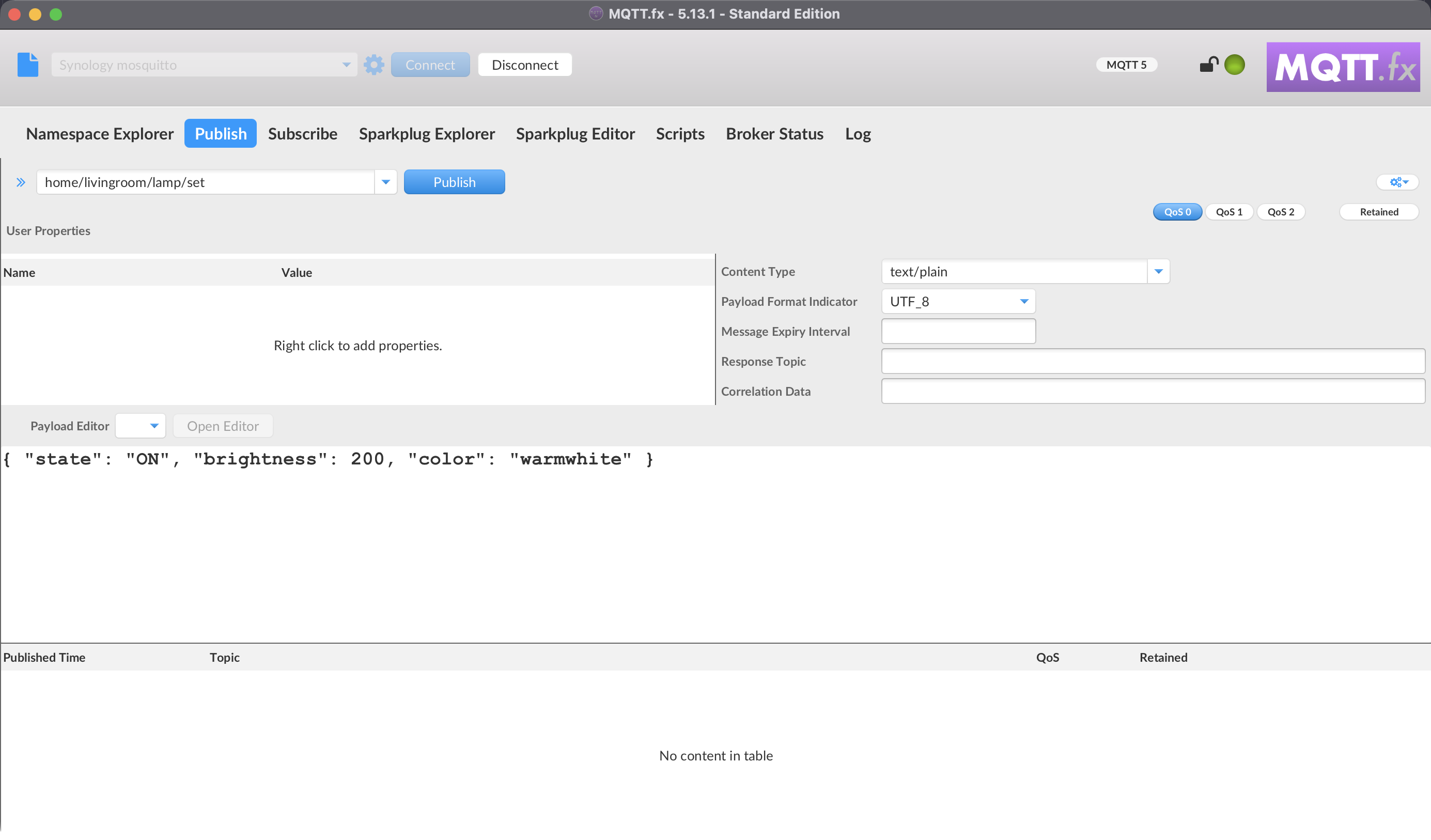
On the Publish tab:
- Type or pick a Topic to publish to.
- Choose a QoS level (0, 1, 2).
- Optionally enable Retained so the broker stores the message as the topic's retained value.
- Enter the payload in the message area.
- Click Publish.
Every publish is recorded in the Published Messages table (with topic, QoS, retained flag, and published time), and the topic is added to this profile's recent publish topics. Clear Recent Topics cache removes the remembered publish topics (asks for confirmation).
MQTT 5 publish properties#
On an MQTT 5.0 connection you can attach message properties when publishing (disabled for MQTT 3):
- User Properties — arbitrary name/value pairs.
- Content Type — defaults to plain text if left unset.
- Payload Format Indicator — defaults to UTF-8.
- Message Expiry Interval — in seconds.
- Response Topic — the topic a responder should reply on.
- Correlation Data — ties a response back to its request.
See MQTT 5 features.
Payload editors#
A Payload Editor can help you build structured payloads instead of typing raw text. Editors are provided as add-ons; see Payloads and formatting.
Message clipboard (predefined messages)#
The Messages-Clipboard stores reusable, named messages per profile — useful for test messages you publish repeatedly.
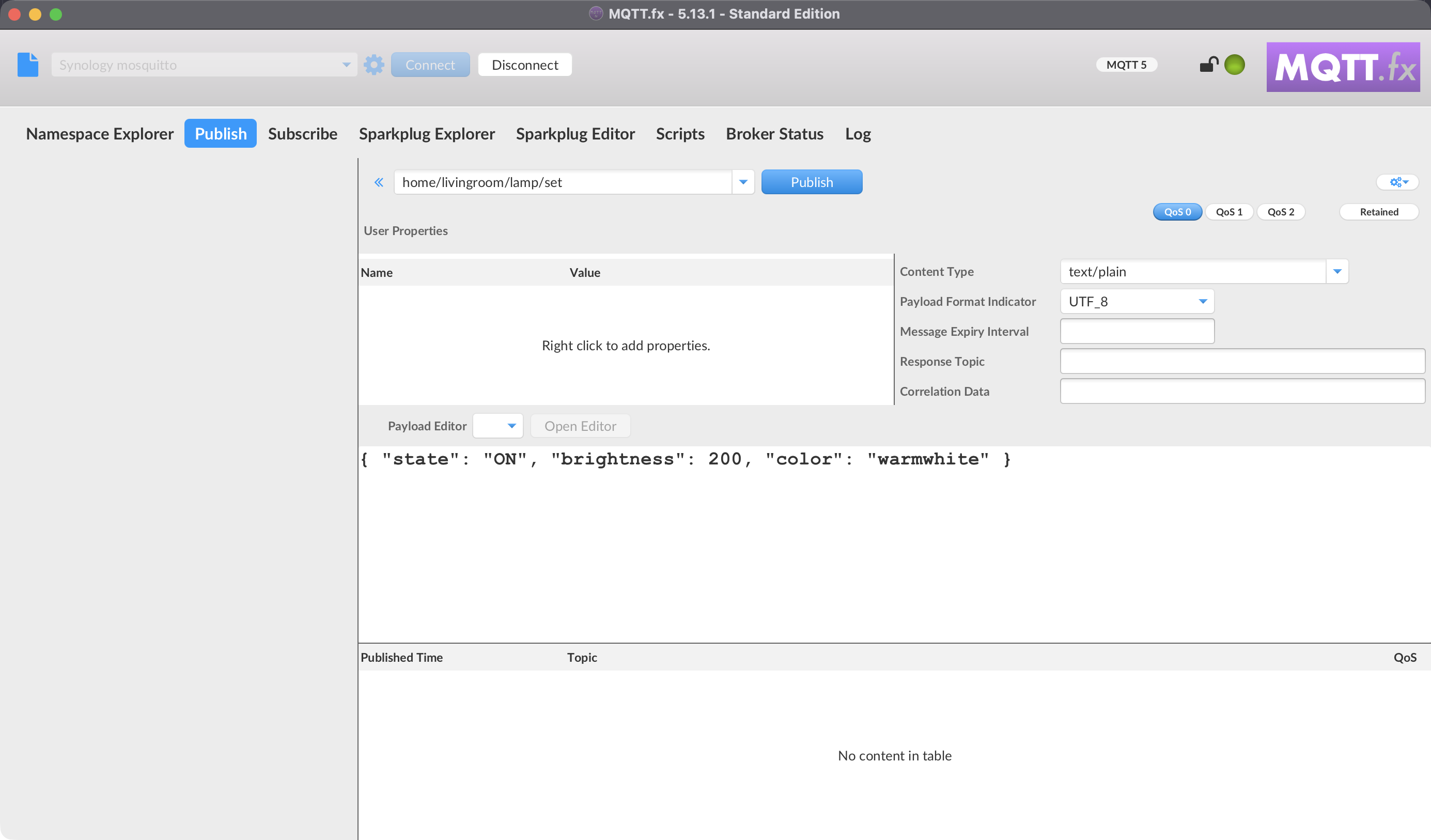
- Add to Messages Clipboard saves the current topic, QoS, retained flag, and payload under a name you choose.
- Select a saved message to load it back into the publish fields, then Publish.
- Edit a saved message's name, save changes, delete it, or publish it directly from the clipboard pane.
- Drag and drop entries to reorder them.
- Clear Messages Clipboard removes all saved messages from the profile (asks for confirmation).
Toggle the clipboard pane open or closed with the button on the publish toolbar.
Tips and caveats#
- A retained message stays on the broker and is delivered to every new subscriber of that topic until it is replaced or cleared. Publish an empty retained payload to a topic to clear its retained message.
- QoS is negotiated per subscription and per publish; the QoS a subscriber receives can be lower than what was published.
- On very busy topics, watch the Incoming vs Processed meter to confirm MQTT.fx is keeping up.