Settings#
Application-wide preferences live in the Settings and Options dialog, opened from Preferences…. These apply across all connection profiles.
Some changes take effect immediately; others note that a restart is required (the dialog shows "Changes will take effect after restarting the application!" where that applies).
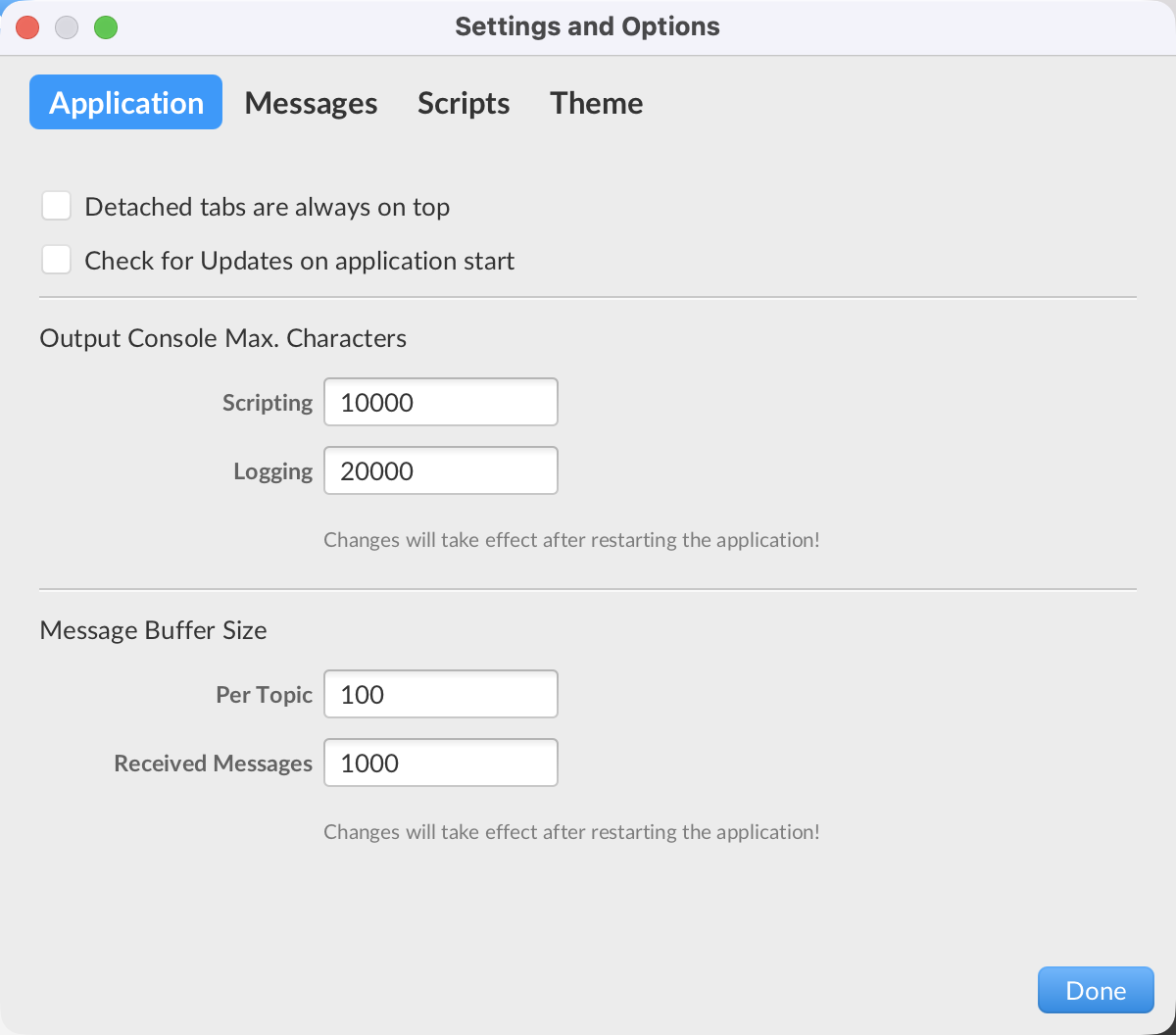
Application#
- Check for Updates on application start — check for a newer MQTT.fx release at launch.
- Detached tabs are always on top — keep tabs you detach into their own windows above other windows.
Messages#
Settings that affect how received messages are displayed and buffered:
- Font Size — choose Use dynamically scaled font size or Use fixed font size (with a slider and a live preview, plus Reset to Default) for message payloads.
- Message Buffer Size — separate limits for Received Messages (the overall received buffer) and Per Topic (per-topic message buffer). Since MQTT.fx 5.13.0, changing these takes effect for newly subscribed topics without a restart.
- Output Console Max. Characters — the cap on the Log console length.
- Clear MessageBuffer on broker disconnect — empty the received-messages buffer when you disconnect.
- Clear MessageBuffer on unsubscribe from topics — empty the buffer when you unsubscribe.
- Clear Received Messages Buffer Now — a one-off clear (asks for confirmation).
Scripts#
- Editor — open scripts with the system default editor, or specify a custom edit command. This is the editor used by the Edit button on the Scripts tab.
Theme#
- Light, Dark, or Custom. For a custom theme, point MQTT.fx at a CSS file; use Create custom CSS template to generate a starting file and Edit to open it.
Broker status ($SYS)#
- Enable subscriptions to $SYS topics — required for the Broker status view to receive data. Off by default.