Scripting#
MQTT.fx can run JavaScript to automate MQTT traffic — for example, publishing a burst of test messages, or subscribing and reacting to topics. Scripts run from the Scripts tab and are loaded from a scripts folder. The engine is GraalVM JavaScript.
Where scripts live#
Scripts are loaded at startup and via the Reload button on the Scripts tab from a scripts folder in the MQTT.fx working directory:
| OS | Path |
|---|---|
| macOS | ~/Library/Application Support/MQTT-FX/scripts |
| Windows | %USERPROFILE%\AppData\Local\MQTT-FX\scripts |
| Linux | ~/MQTT-FX/scripts |
The folder is created on first run if missing, seeded with a few example scripts. The example used throughout this chapter is 09__Load_Test_Broad_Namespace.js, which builds a broad topic tree under loadtest/… and publishes to it many times.
Naming convention#
Script files must follow the pattern:
[INDEX]__[NAME].js e.g. 09__Load_Test_Broad_Namespace.jsThe two underscores separate an index from a name. INDEX controls the ordering in the script list; NAME (with _ shown as spaces) becomes the label. Files that do not match the [INDEX]__[NAME].js pattern are ignored.
Running a script#
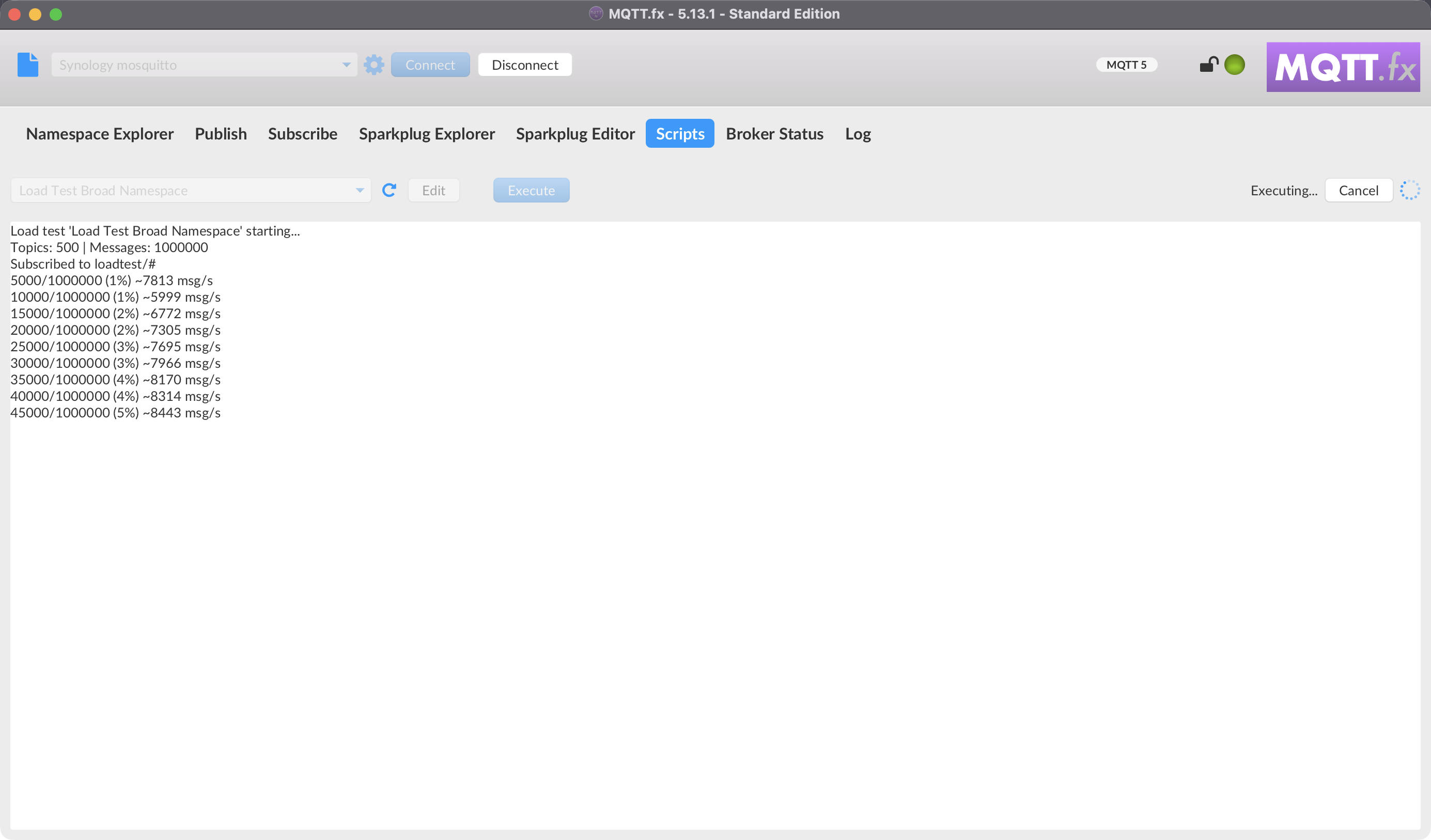
On the Scripts tab:
- Pick a script from the Scripts list.
- Click Execute to run it. Output appears in the console.
- Click Cancel to stop a long-running script.
- Click Reload to rescan the scripts folder for newly added or renamed script files.
- Click Edit to open the selected script in an external editor (configure which one in Settings), and Clear Console to clear the output.
You do not need Reload after editing a script's contents — each script is re-read before it runs, so changes to the code take effect on the next Execute. Reload is only for picking up new files or filename changes in the scripts folder.
Script structure#
A script implements an execute(action) function. It receives an action object and returns it after setting a result and exit code. The example below is a condensed version of 09__Load_Test_Broad_Namespace.js — it builds a broad topic tree, subscribes to it, and floods it with messages while printing progress:
// 09__Load_Test_Broad_Namespace.js (condensed)
var ROOT = "loadtest", AREAS = 10, DEVICES = 10, SENSORS = 5, ROUNDS = 2000;

function execute(action) {
    var topics = buildTopics();
    output.print("Topics: " + topics.length + " | Messages: " + topics.length * ROUNDS);
    mqttManager.subscribe(ROOT + "/#", 0);          // also load the receive path

    var sent = 0;
    for (var r = 0; r < ROUNDS; r++) {
        for (var i = 0; i < topics.length; i++) {
            mqttManager.publish(topics[i], '{"seq":' + sent + ',"round":' + r + '}', 0, false);
            if (++sent % 5000 === 0) output.print(sent + " sent");
        }
    }
    script.setResultText(sent + " messages");
    script.setExitCodeOk();
    return script;
}

function buildTopics() {
    var list = [];
    for (var a = 0; a < AREAS; a++)
        for (var d = 0; d < DEVICES; d++)
            for (var s = 0; s < SENSORS; s++)
                list.push(ROOT + "/area" + a + "/device" + d + "/sensor" + s);
    return list;
}
Bindings available in a script#
The following objects are injected into the script context.
// Publish / Subscribe / Unsubscribe
mqttManager.publish(topic, body);
mqttManager.publish(topic, body, qos);
mqttManager.publish(topic, body, qos, retained);
mqttManager.subscribe(topicFilter);
mqttManager.subscribe(topicFilter, qos);
mqttManager.unsubscribe(topicFilter);

// Script lifecycle / result
script.sleep(millis);
script.setExitCode(code);
script.setExitCodeOk();
script.setResultText(message);

// Console + logging
output.print(message);
logger.debug(msg); logger.info(msg); logger.warn(msg); logger.error(msg); logger.trace(msg);
mqttManager publishes and subscribes through the currently connected client, so connect to a broker before running a script that sends or receives traffic. output writes to the Scripts console; logger writes to the log.