TLS and security#
MQTT.fx can connect to brokers over TLS/SSL and through an HTTP proxy. TLS protects the connection in two ways: it lets MQTT.fx verify the broker's identity (so you know you are talking to the right server) and it encrypts the traffic. Some brokers additionally require the client to present its own certificate (mutual TLS / client-certificate authentication).
All of this is configured per connection profile, in the TLS/SSL section of the connection options. TLS handling is built on BouncyCastle.
Enabling TLS#
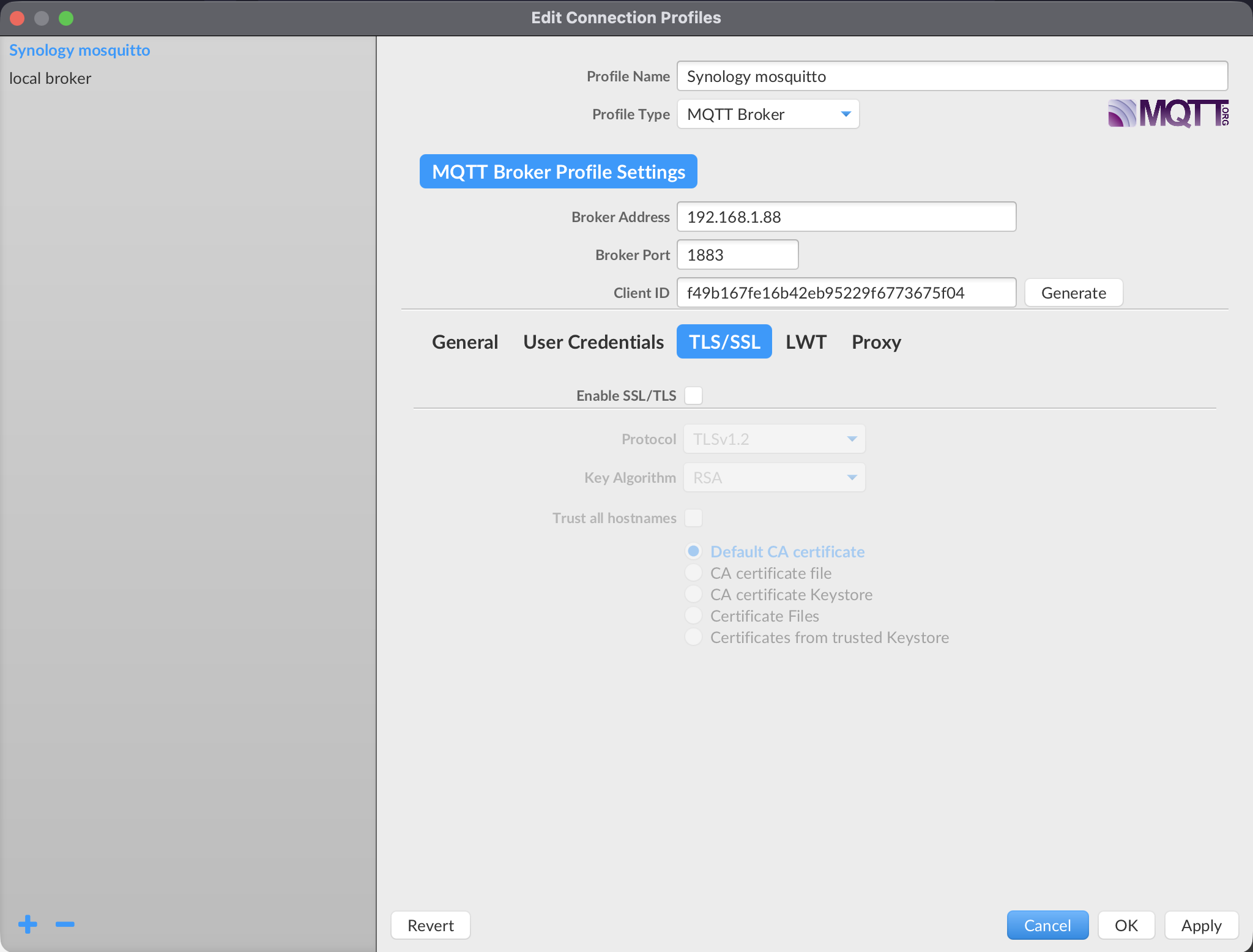
Turn on Enable SSL/TLS in the TLS/SSL section of the profile. TLS is off by default, and a new profile connects in plain text.
Remember to also use the broker's TLS port — commonly 8883 — in the profile's broker settings. Enabling TLS while still pointing at the plaintext port (1883) will fail.
When you are connected, the connection bar shows a lock icon for a TLS connection and an unlock icon for a plain one (see Your first connection).
Choosing the protocol#
The Protocol drop-down selects the TLS/SSL version. The default is TLSv1.2. The list also offers TLSv1.3, the older TLSv1 / TLSv1.1, the legacy SSLv1/SSLv2/SSLv3, and SSL_TLS.
Use TLSv1.2 or TLSv1.3. The SSLv* options and TLSv1/1.1 are obsolete and insecure; they exist only for compatibility with very old brokers. Match whatever your broker requires, preferring the newest version both sides support.
Trust and identity modes#
The TLS/SSL section offers five modes, selected with radio buttons. They fall into two groups.
Verify the broker only (one-way TLS — the usual case):
| Mode (radio button) | Use when |
|---|---|
| Default CA certificate | The broker's certificate is signed by a well-known public CA. |
| CA certificate file | The broker uses a private or self-created CA; you have its CA certificate as a file. |
| CA certificate Keystore | Your trust anchors live in a Java keystore file. |
Also present a client certificate (mutual TLS — when the broker authenticates the client by certificate):
| Mode (radio button) | Use when |
|---|---|
| Certificate Files | You have the CA, client certificate, and client key as separate files. |
| Certificates from trusted Keystore | Your server trust and client identity live in keystore files. |
The editor shows only the input fields relevant to the selected mode.
Default CA certificate#
No files to configure. MQTT.fx validates the broker's certificate against the system/default CA trust store. This is the right choice for public cloud brokers and any broker with a certificate from a recognized CA.
CA certificate file#
Provide a CA Certificate File that MQTT.fx should trust when validating the broker. Use this for brokers whose certificate is signed by your own CA or is self-created. Enable PEM Formatted if the file is in PEM format.
CA certificate Keystore#
Provide a Trusted Keystore File and its password. MQTT.fx trusts the certificate authorities contained in that keystore when validating the broker.
Certificate Files#
For mutual TLS using individual files. Provide:
- CA File — to verify the broker.
- Client Certificate File and Client Key File — the client identity MQTT.fx presents to the broker.
- Client Key Password — if the private key is encrypted.
- PEM Formatted — enable if the files are PEM-encoded.
Certificates from trusted Keystore#
For mutual TLS using keystores. Provide:
- Trusted Keystore File + password — the CA/trust anchors used to verify the broker.
- Client Keystore File + password — the keystore holding the client's key and certificate.
- Client KeyPair Alias + password — which key entry in the client keystore to use.
Keystore type and key algorithm#
When working with keystores and keys you can also set:
- Type — the keystore format: JKS (.jks) (default) or PKCS#12 (.p12).
- Key Algorithm — RSA (default) or EC.
Set these to match how your keystore and keys were created.
Trust all hostnames#
Trust all hostnames disables the check that the broker's certificate matches the hostname you connected to.
Security warning: enabling this removes an important protection against man-in-the-middle attacks. Use it only for local testing or against a broker whose certificate does not include the address you connect to. Never enable it for a production connection.
Client certificate authentication#
The Certificate Files and Certificates from trusted Keystore modes are how you do certificate-based (mutual TLS) authentication. See Authentication for how certificate auth relates to username/password auth.
Proxy connections#
If MQTT.fx has to reach the broker through an HTTP proxy, enable the proxy in the profile's Proxy section and set:
- Proxy User and Proxy Password — if the proxy requires authentication
- Proxy Host and Proxy Port
- Proxy Header User-Agent — the
User-Agentsent on the HTTP CONNECT request (defaults todefaultClient)
The proxy tunnels the MQTT connection, including TLS connections, to the broker.
Example: connecting to a cloud broker over TLS#
Tips and caveats#
- Confirm a plain connection works first (where the broker allows it), then enable TLS — it isolates "can I reach the broker" from "is my TLS configuration correct."
- A TLS handshake failure usually means a trust-mode mismatch (wrong or missing CA), a hostname mismatch, or the wrong port. The Log shows the underlying error.
- Exported profiles can contain certificate/keystore paths and passwords — treat exported profile files as sensitive (see Connection profiles).