Sparkplug B#
MQTT.fx includes tooling for Eclipse Sparkplug B, the MQTT-based specification for industrial/IIoT device data. Two views work together: the Sparkplug Explorer decodes live Sparkplug traffic, and the Sparkplug Editor models and publishes Sparkplug messages for testing. This is an advanced, optional feature; if you do not work with Sparkplug systems you can ignore these tabs.
You must be connected to a broker to use them.
A quick orientation#
Sparkplug B organizes data into a hierarchy — group, edge node (EoN), and device — that exchange typed metrics. Messages have defined types, each a button/label in MQTT.fx:
| Type | Meaning |
|---|---|
| NBIRTH / NDEATH | Birth / death certificate for an edge node |
| DBIRTH / DDEATH | Birth / death certificate for a device |
| NDATA / DDATA | Node / device data |
| NCMD / DCMD | Node / device command |
| STATE | Critical application (host) state |
For the full specification, refer to the Eclipse Sparkplug documentation; this chapter covers the MQTT.fx tooling.
Sparkplug Explorer#
The Sparkplug Explorer decodes live Sparkplug traffic into a node/device/metric tree. With a broker connected:
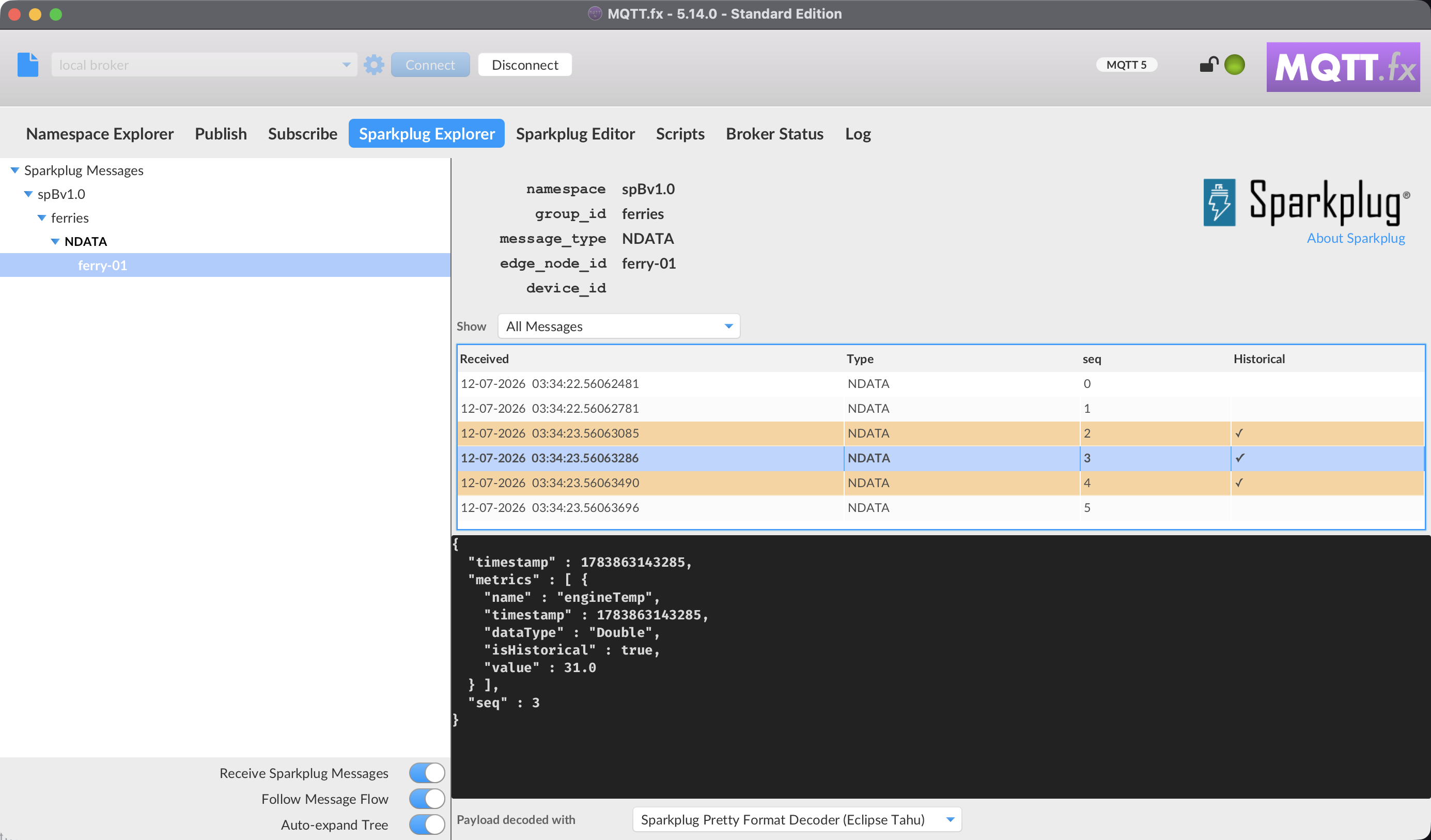
- Receive Sparkplug Messages — start decoding incoming Sparkplug messages.
- Follow Message Flow — highlight the path of the most recent message as traffic arrives, and keep the message history on the newest message (on by default).
- Auto-expand Tree — expand new nodes automatically as they appear (on by default).
Select a leaf in the tree to inspect its messages: the details pane shows the topic parts (namespace, group id, message type, edge node id, device id), the message history of that topic, and the decoded payload of the message selected in the history.
Message history and Store & Forward filter#
For every topic the Explorer keeps a chronological history of the last 500 messages, shown as a table with the received time, message type, seq number, and a Historical marker. This makes reconnect scenarios observable: when an Edge Node loses its connection and later replays its Store & Forward buffer, the replayed burst arrives on the same NDATA/DDATA topics as live data — in the history every replayed message stays visible instead of overwriting the previous one.
Messages whose payload contains at least one metric flagged is_historical (the Sparkplug B marker for Store & Forward replay) get a check mark in the Historical column and are highlighted in the table. This is a payload-level property — filtering on it at the MQTT subscription level is not possible by design, which is why the Explorer decodes and classifies each message as it arrives.
Use the Show filter above the table to switch between All Messages, Live Only, and Historical Only (Store & Forward). Historical Only isolates the replayed buffer — for example to verify that a device that went offline buffered its data and delivered everything on reconnect.
Tip: to test a host application without a real connectivity drop, use the Sparkplug Editor to publish metrics with Is Historical set — the Explorer classifies them exactly like a real replay.
Sequence gap detection#
Every Sparkplug message carries a seq number that its edge node counts from 0 to 255 (wrapping back to 0), shared across all topics of that node — NDATA and DDATA of several devices draw from the same sequence. If a number is missing from that chain, a message was lost.
The Explorer checks this chain as messages arrive. When it detects a gap, the message history shows a red separator row at the position of the loss:
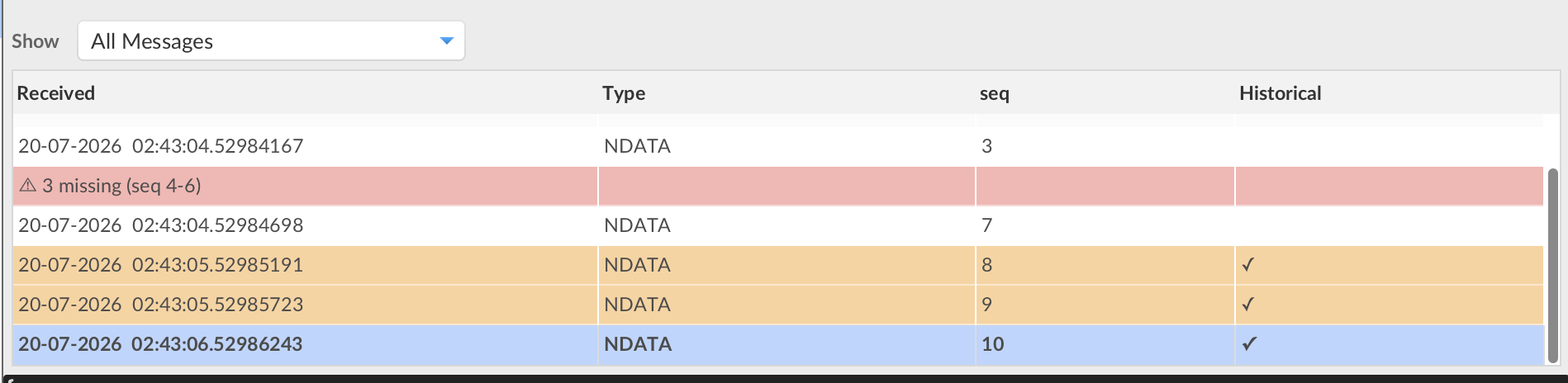
Hover over the row for details. Note that the missing messages belong to the edge node's sequence, not necessarily to the displayed topic — they may have been published on another topic of the same node. Because the chain is shared, two adjacent rows of one topic's history can legitimately have non-consecutive seq numbers without any loss; the Explorer accounts for this and only flags real gaps.
Details of the classification:
- An
NBIRTHrestarts the node's chain at 0 and is never reported as a gap — a rebirth is not data loss. - The separator stays visible under every Show filter, so a loss remains apparent even when the filter hides the surrounding messages.
- Messages without a decodable seq (for example
STATE, or commands) do not affect the chain.
Combined with the Historical Only filter this answers the key Store & Forward question: did the buffer replay completely after the reconnect? If the replay is complete, the history shows the historical burst without any gap row.
Sending commands (NCMD/DCMD)#
Right-click an edge node or device in the tree to send Sparkplug commands to it:
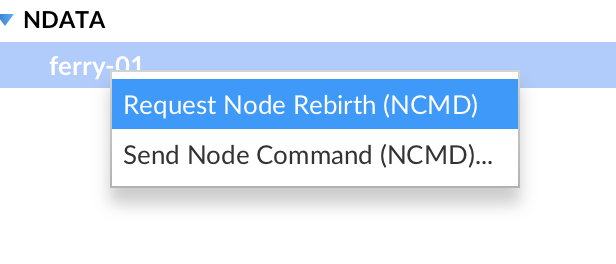
- Request Node Rebirth (NCMD) / Request Device Rebirth (DCMD) — immediately publishes a rebirth request (
Node Control/Rebirthresp.Device Control/Rebirthset totrue). A spec-conform node answers with a freshNBIRTH/DBIRTH, which you see arrive in the same tree. - Send Node Command (NCMD)... / Send Device Command (DCMD)... — opens the Send Sparkplug Command dialog for a single command metric. The Metric Name box is preloaded with the well-known
Node Control/Device Controlmetrics from the Sparkplug specification and remains editable for application-specific metrics. Choose a Data Type (Boolean,Int32,Int64,Float,Double,String) and enter the Value — the value field only accepts input that matches the chosen type.
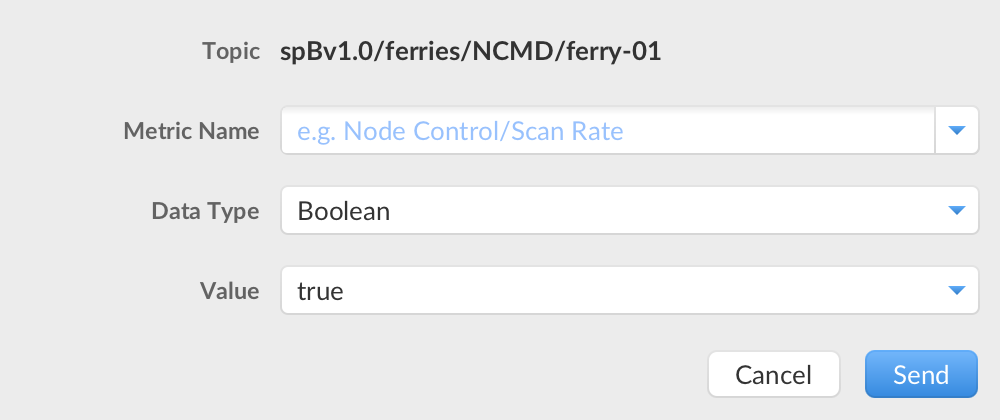
Commands are published with QoS 0, no retain, and — per the Sparkplug specification — without a seq number. The command itself shows up in the Explorer tree (under NCMD/DCMD), since the Explorer subscribes to all Sparkplug traffic; this is your immediate feedback that it went out. The menu entries are only enabled while connected to a broker.
Note: MQTT.fx sends commands as a test tool; it does not act as a Sparkplug primary host application (no
STATEpublishing).
Sparkplug Editor#
The Sparkplug Editor lets you model Sparkplug messages and publish them to a broker — useful for testing a Sparkplug consumer or host application.
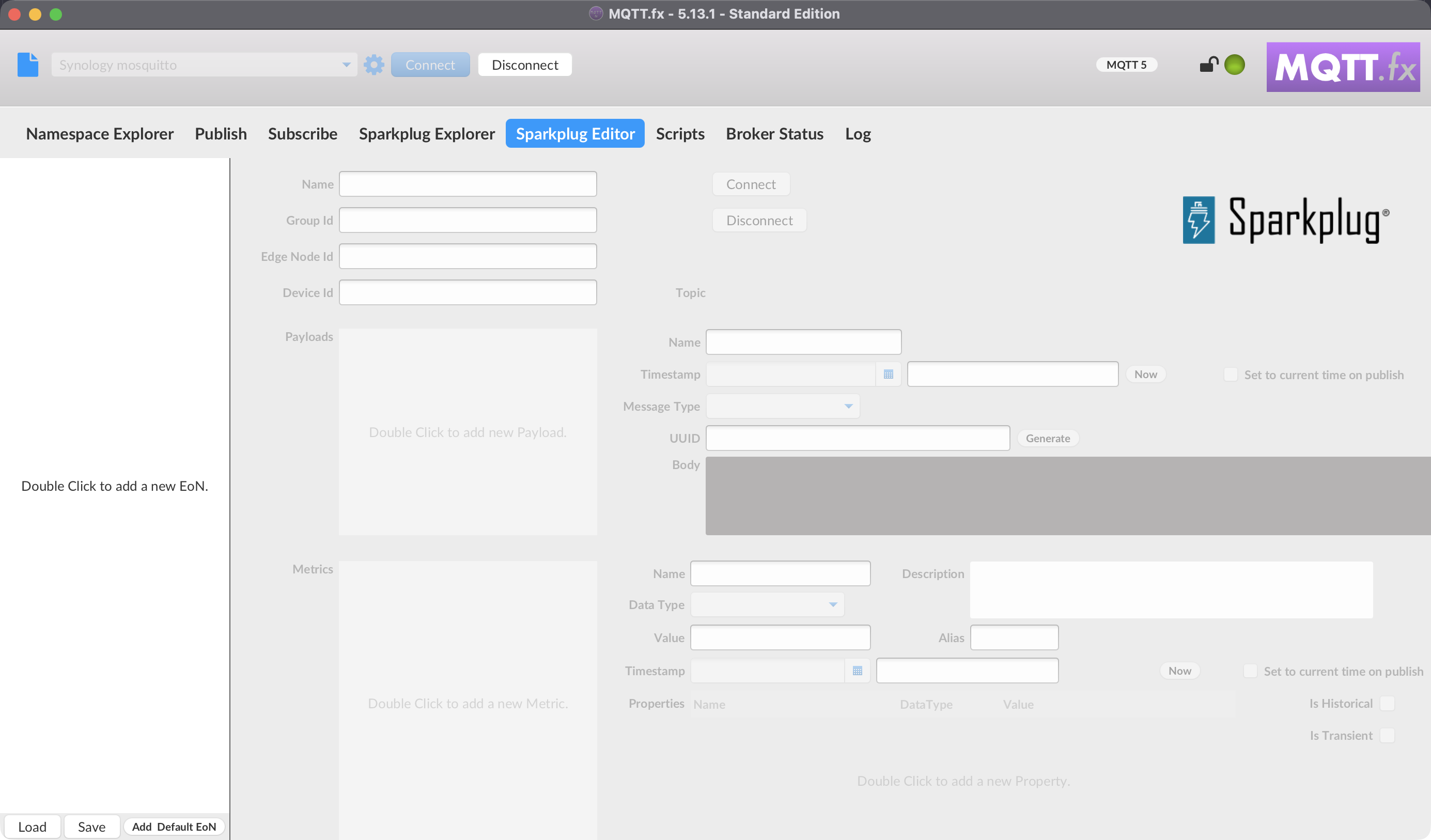
You build the structure top-down:
- Edge nodes (EoN) — with a Group Id, Edge Node Id, and optional Device Id.
- Payloads — with a Timestamp, UUID (use Generate), Message Type, optional Body, and a set of Metrics.
- Metrics — each with a Name, Data Type, Value, optional Alias, Timestamp, flags (Is Null, Is Historical, Is Transient), Description, and nested Properties.
Helpful actions:
- Now sets a timestamp to the current time; Set to current time on publish stamps it automatically when you publish.
- Preview shows the composed Sparkplug payload before sending.
- Apply commits your edits to the model.
- Publish (and the message-type buttons such as NBIRTH, DBIRTH, NDATA, …) sends the corresponding Sparkplug message.
Tip: there is an About Sparkplug action in these views with a short explanation of Sparkplug B and links.